Hi there everyone!
Today we will be looking at the shape tool in the Silhouette Alta 3D software.
Unlike the regular silhouette studio software, the alta software creates shapes that are 3D.
Below is how the shape tool works.
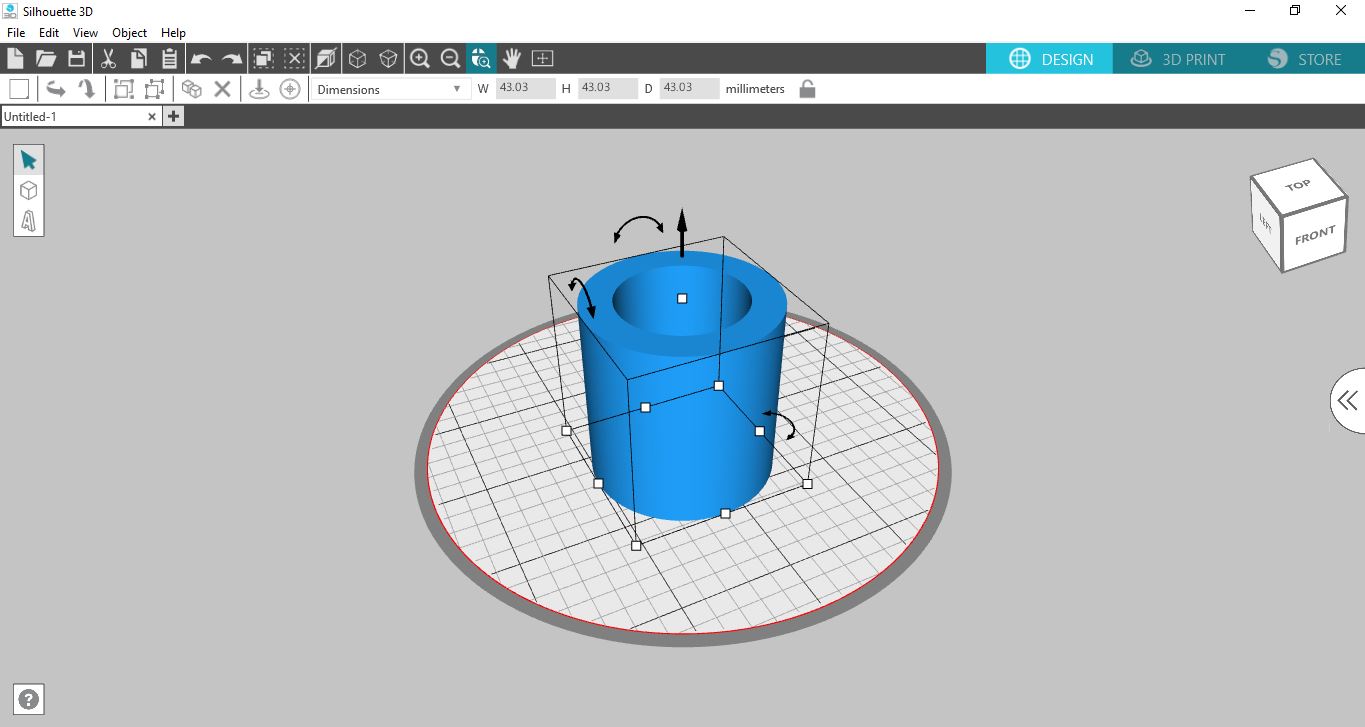
1- Open Silhouette Alta 3D software. Click on the shape tool.
2- The shape tool consists of 10 different shapes that combine can create a number of projects for you to print.
3- Cone.
4- Cube.
5- Cylinder.
6- Dome.
7- Regular Pyramid.
8- Sphere.
9- Frustum of cone.
10- Torus.
11- Tube.
12- Wedge.
13- You can click on any node on your design to change the size and shape.
14- For example you can click and drag on the bottom node to change a cube into a rectangle.
15- By clicking on the top node and dragging up you can adjust the height.
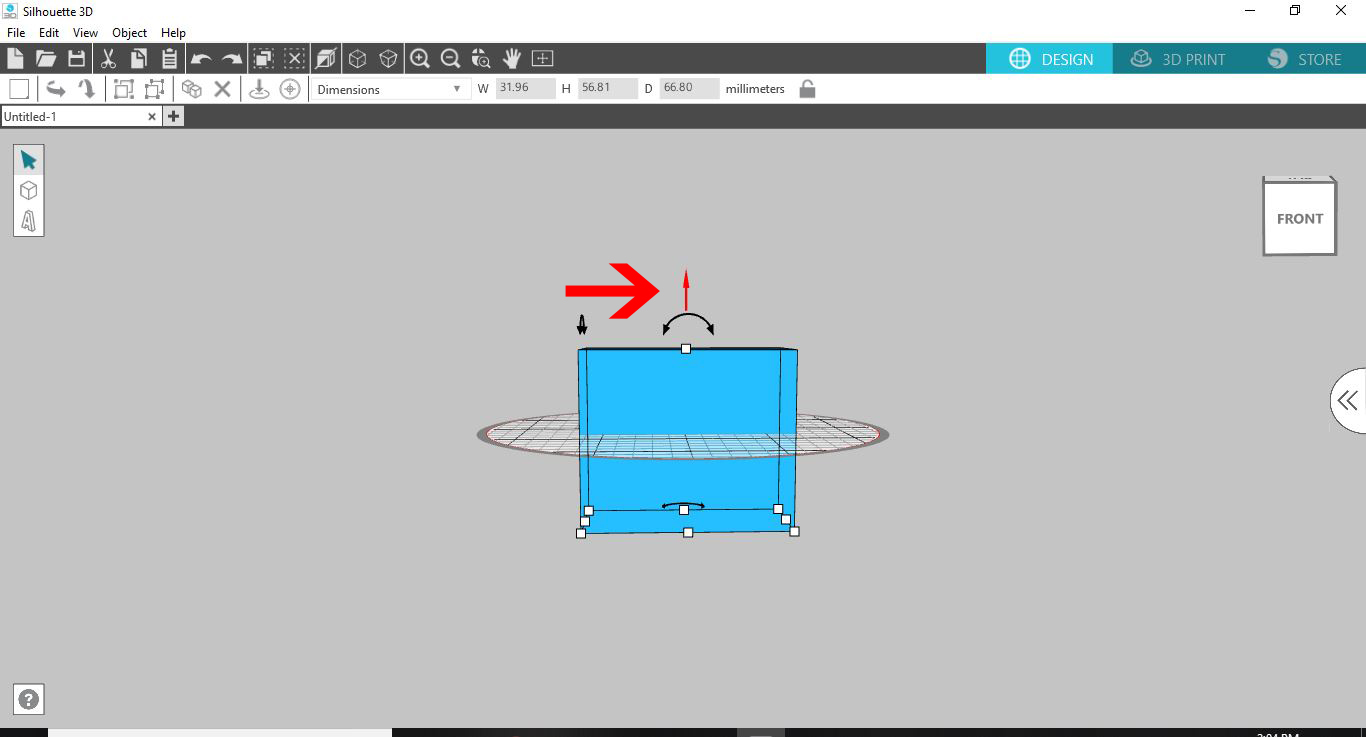
16- You also have the option to use the curved arrows to change the angle of your design.
17- You can also use the alternative curved arrow to change the angle of the shape so you can move it from horizontal to vertical and vise versa.
18- By adjust the vertical arrow you can move your design to ensure it is placed on the design bed correctly as when designing designs can move and end up under the bed plate.
19- Once you re happy you can then click on 3D print and print your design.
19 April 2019
12 April 2019
How to unload filament in the Silhouette Alta 3D printer.
hi there!
With the Silhouette Alta 3D printer you need to ensure you do not leave the filament in the tubing or print head. Filament is a funny thing and is affected by hot and cold and humidity. This is why you need to store it in a cool dry place. By leaving filament in your machine you are risking the filament clogging the print nozzles or snapping in the tubes. By following the below tutorials it will oly take you a few moments to ensure that this does not happen.
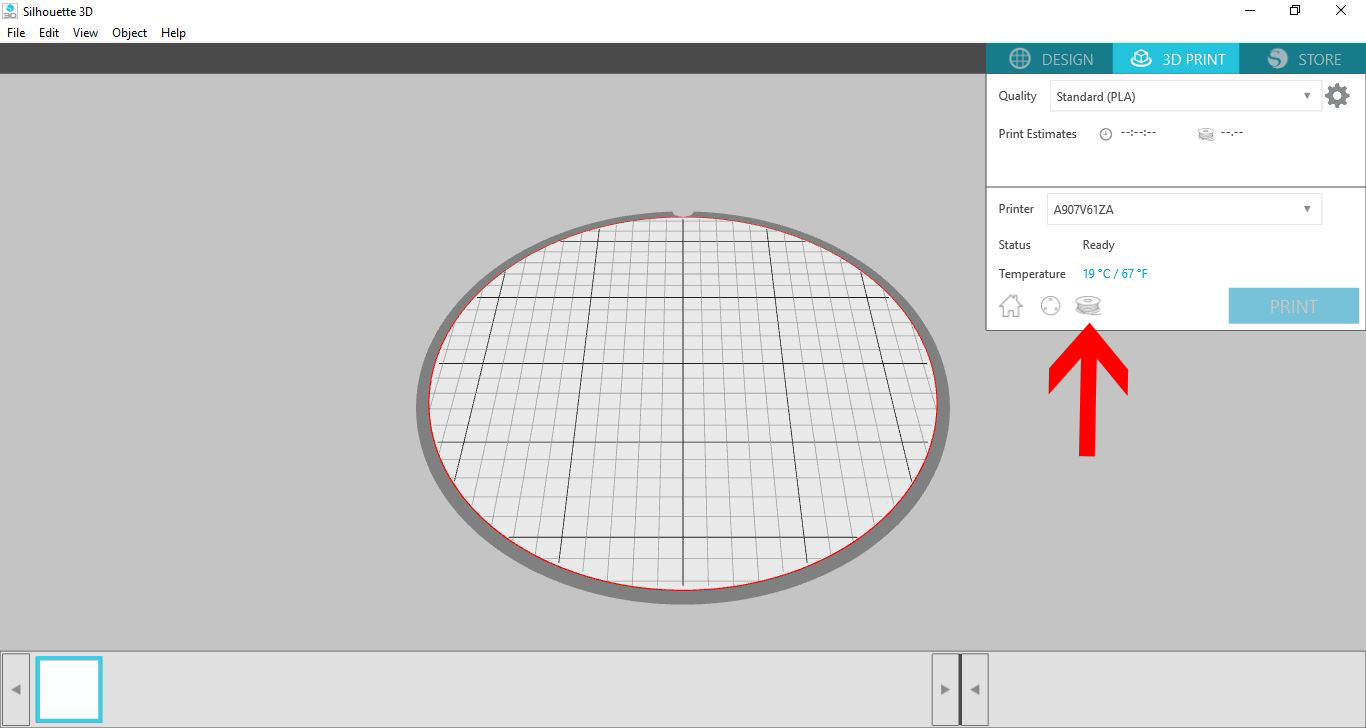
1- Once you have finished all your printing for the day you need to unload your filament. Click on the 3D print icon.
2- Next Click on the little roll of filament icon.
3- On the new screen click on the Unload filament option.
4- Shut the machine door and lock it. then click unload.
4- make sure there is no obstructions in the way. you will see that the machine will send out a small amount of filament. This is waste you can dispose off shortly.
5- Make sure there is ample filament space. as the machine will reverse the filament out of your machine. Once it has finished you can press on the lever and pull the last bit out.
6- Make sure that when you do this you trim any edges ready for the next load.
Not so hard! A quick and easy process to ensure you machine stays in top condition for future prints.
With the Silhouette Alta 3D printer you need to ensure you do not leave the filament in the tubing or print head. Filament is a funny thing and is affected by hot and cold and humidity. This is why you need to store it in a cool dry place. By leaving filament in your machine you are risking the filament clogging the print nozzles or snapping in the tubes. By following the below tutorials it will oly take you a few moments to ensure that this does not happen.
1- Once you have finished all your printing for the day you need to unload your filament. Click on the 3D print icon.
2- Next Click on the little roll of filament icon.
3- On the new screen click on the Unload filament option.
4- Shut the machine door and lock it. then click unload.
4- make sure there is no obstructions in the way. you will see that the machine will send out a small amount of filament. This is waste you can dispose off shortly.
5- Make sure there is ample filament space. as the machine will reverse the filament out of your machine. Once it has finished you can press on the lever and pull the last bit out.
6- Make sure that when you do this you trim any edges ready for the next load.
Not so hard! A quick and easy process to ensure you machine stays in top condition for future prints.
04 April 2019
First time printing on Silhouette Alta Software.
When you get your alta its all excitement and fun to get it out of the box and then make your first print. and if you follow these steps the first print will be a success.
Pick a project that comes free with your machine. you will know that this project is tried and tested and will print correctly.
The issues with free print files is you do not know if they will work with the Alta so by using a silhouette file you know it will work. if it does not it may be another issue or calibration that is needed.
Lets try our first print, I will be using the free dice that comes with the machine.
1- Load up the Silhouette Alta 3D printer software. For your first print pick something simple from the free designs that come with the software.
To do this click on the arrows to access your library.
2- Click on Library.
3- Access the free designs and select a simple design. I am using the die.
4- When you click on the image the 3D image will appear on your design space.
5- At this point you can adjust the size of the design. Click on the 3D print icon.
6- The next screen may take a few seconds to appear. This is the software creating the slicing of the design ready to print. You can see the sliced design on your screen.
To zoom in use the roller on your mouse. To rotate right click your mouse and hold then move around to see different angles of your design.
7- You can also click on the play icon to see the printing process play through to see how your design will print.
8- At any point you can click on Print to start the 3D printing.
9- The 3D printer will print to get to 200 oC then start to print your design.
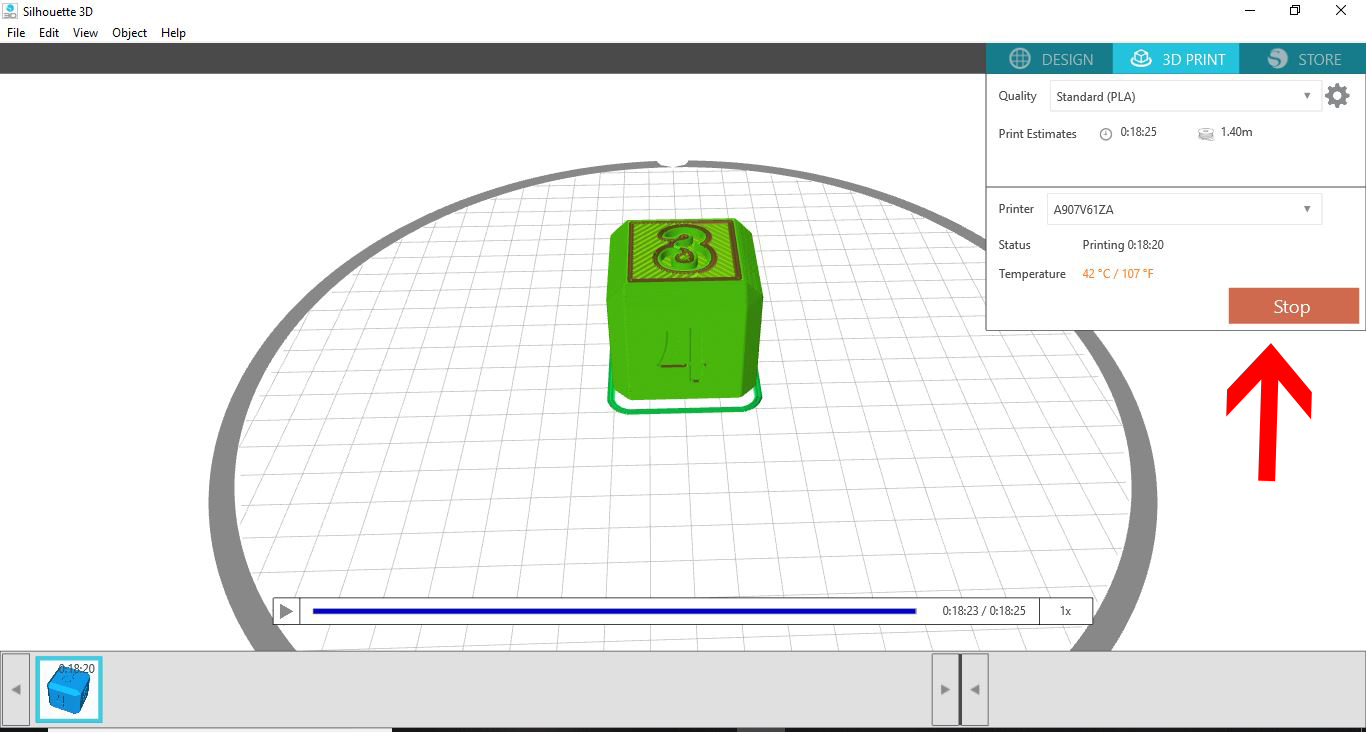
10- At any point you can click on the stop icon to stop the 3D print.
11- Once your print has finished (or if you have manually stopped it) A message will appear letting you know that your Is finished and to allow the printed file a few minutes to cool.
Pick a project that comes free with your machine. you will know that this project is tried and tested and will print correctly.
The issues with free print files is you do not know if they will work with the Alta so by using a silhouette file you know it will work. if it does not it may be another issue or calibration that is needed.
Lets try our first print, I will be using the free dice that comes with the machine.
1- Load up the Silhouette Alta 3D printer software. For your first print pick something simple from the free designs that come with the software.
To do this click on the arrows to access your library.
2- Click on Library.
3- Access the free designs and select a simple design. I am using the die.
4- When you click on the image the 3D image will appear on your design space.
5- At this point you can adjust the size of the design. Click on the 3D print icon.
6- The next screen may take a few seconds to appear. This is the software creating the slicing of the design ready to print. You can see the sliced design on your screen.
To zoom in use the roller on your mouse. To rotate right click your mouse and hold then move around to see different angles of your design.
7- You can also click on the play icon to see the printing process play through to see how your design will print.
8- At any point you can click on Print to start the 3D printing.
9- The 3D printer will print to get to 200 oC then start to print your design.
10- At any point you can click on the stop icon to stop the 3D print.
11- Once your print has finished (or if you have manually stopped it) A message will appear letting you know that your Is finished and to allow the printed file a few minutes to cool.
12- The print is now complete. You can remove the printed design from the base plate and detach the brim that is around the design.
29 March 2019
Silhouette Alta 3D printer software overview.
The Silhouette Alta is a wonderful new machine that was released last year.
The software for the Alta is slightly different to any other Silhouette software so there is a new learning curve.
Below is a basic overview of the silhouette Alta software.
1- Load the Silhouette Alta 3D software. You will see your design space on the screen. This is the same "size" as your printable area. Anything that overhangs will not be able to print.
2- Under the File section, you have your basic tools to open a file, save your files and access your print settings.
3- Edit offers you the options to cut, copy and paste designs, duplicate and edit your preferences.
4- When you select the preferences in the Edit drop down box, you can adjust the language, and the unit of measurement.
5- In the View drop down menu, you can adjust how you see your designs.
6- In the Object drop down menu, you can group and ungroup your designs and rotate them as well. Another important feature is to use the level section so you can drop your design to the design bed.
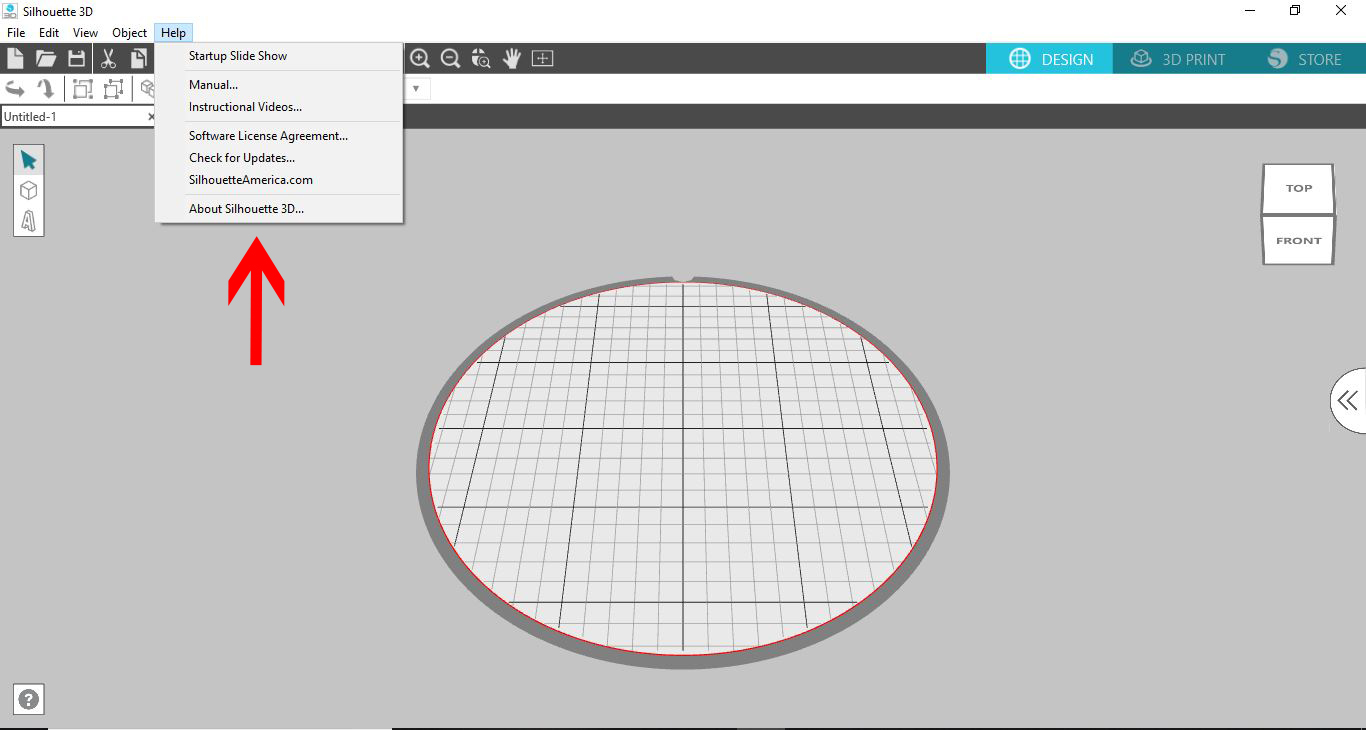
7- You also have a Help drop down option. Here you can fin d video tutorials, the manual for the machine and the machine information.
8- You also have on the right side of your screen a view option. You can use this to move the design area to see the top, bottom, left and right so you have a full 360 degree rotation.
There is also a pull out tab. this can access the library.
9- You can sync your Silhouette Studio files to the 3D software. To find your files, click on Library.
10- In the library you will see a new folder that says 3D designs. Here you can find any 3D design that you may have purchased in Silhouette design store.
11- When you click on it all the 3D designs will appear clearly. You can at any click any of the images and they will appear on your design area.
12- You also have a user design folder.
13- Here you can save your own creations.
14- At the top you also have the 3D print drop down box and then the Silhouette design school icon.
15- When clicking the design store icon you will be sent to your browser to open the design store.
16- On the left you have your toolbar.
17- You have a shape option. Here you have the option to select different 3D shapes to create your designs.
18- you also have a Text option.
19- Once you click on the text option a new pop up will appear.
20- You can add your text and click on OK.
21- The text will appear in 3D ready to print.
Over the next few weeks i'll add more tutorials on how the Alta software works.
Subscribe to:
Posts (Atom)